
Feature
AI meeting notes from every counseling call
Pave turns your Google Meet, Zoom and Teams calls into AI meeting notes on the student's record. The free Pave Recorder extension captures the captions, and Pave writes the summary and the follow-up tasks.
Free to try with full product access.
How AI meeting notes work in Pave
Pave Recorder is a browser extension. It reads the captions on your screen and does not record audio or video.
1. Turn on captions
Start your Google Meet, Zoom or Teams call in the browser with captions on. Pave Recorder reads the captions and the chat.
2. Choose who it is for
Pick the student or lead the meeting is for, and match each speaker to a student, parent or other contact.
3. Send it to Pave
Stop the capture and send the meeting to Pave. Automatic sending is off unless you turn it on.
4. Read the notes
The meeting note appears on the student's record with the transcript. Pave adds the AI summary when it is ready.
Get Pave Recorder on the Chrome Web Store (opens in a new tab)
What the summary covers
Each summary is short paragraphs with a one-word label, so you can scan it before the next session.
- Agenda: what the meeting was about and its main outcome
- One paragraph for each topic, such as essays or funding
- Actions: what each person agreed to do, with any stated deadline
- Next: the next meeting or discussion that was agreed
What stays on the record
The note sits with the student's other meetings, so the next counselor sees the full history.
- The full transcript, which you can download
- Edit the note, or write a fresh summary from the transcript
- A copy in your Recorder Meetings library, with search
- Export a student's meeting notes as a PDF for a date range
Follow-up tasks from the meeting
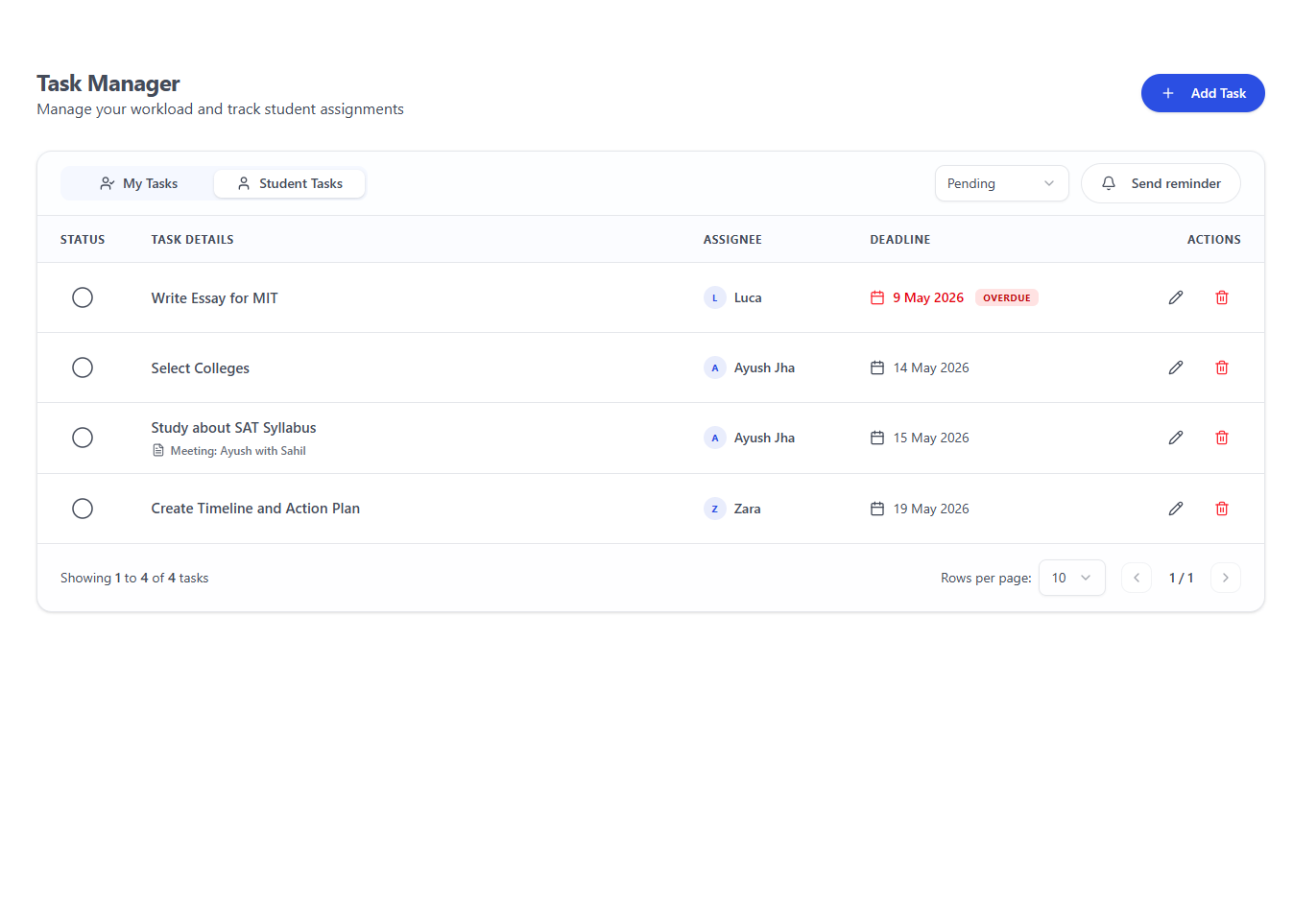
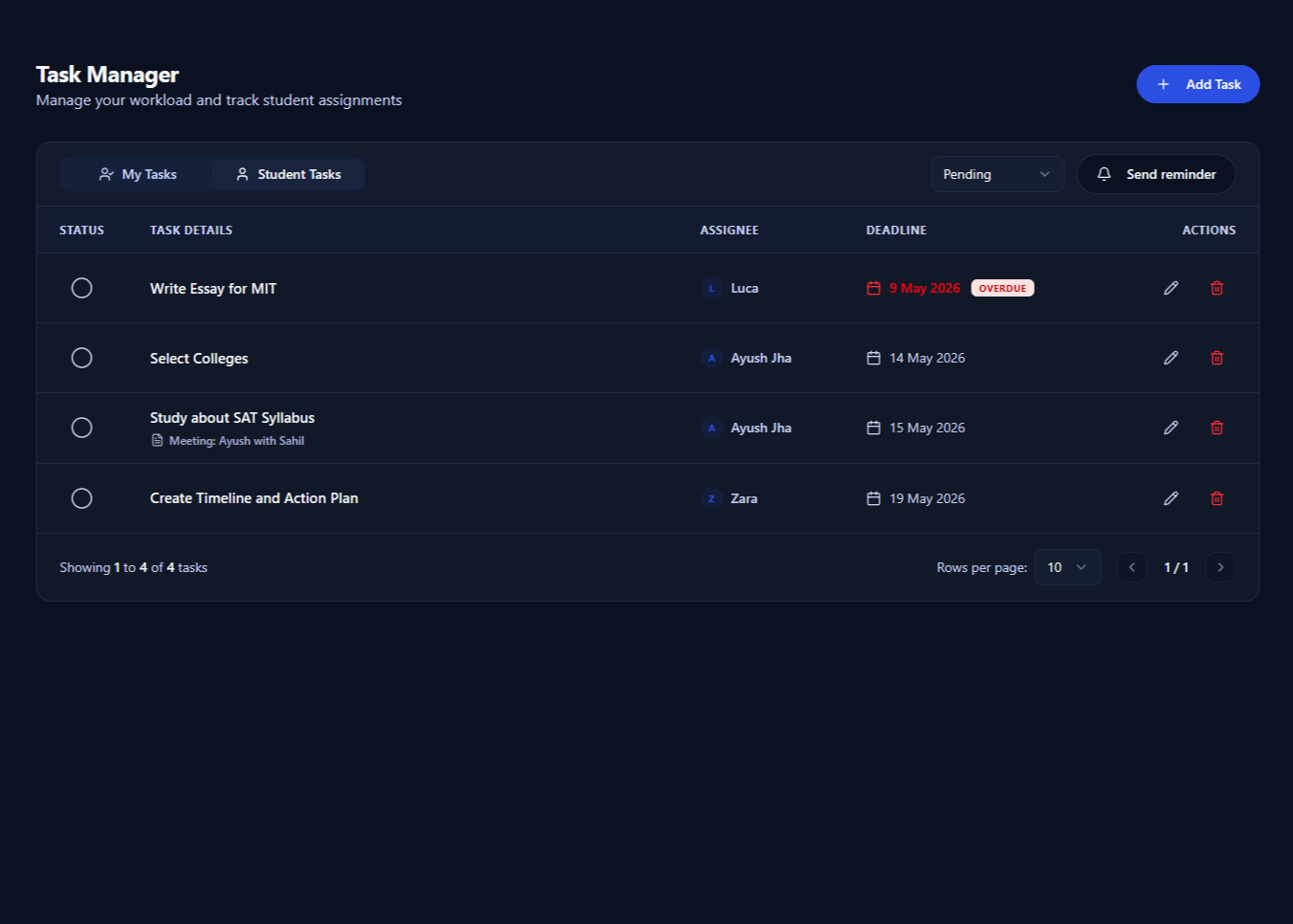
Turn on Generate tasks, or generate them from one meeting note. Pave lists what was agreed as student to-dos, counselor to-dos and follow-up topics.
Each task comes from something said in the meeting. A deadline is added only when one was agreed. Pave skips tasks that repeat an open task.
Promises made by a parent stay in the notes under the parent's name. They do not become student tasks.
Profiles and leads stay current
When a student has a linked Pave account, the meeting can fill empty fields in their profile, such as a test score, an intended major or an activity. A field that already has a value is changed only when the meeting is clear about it.
Calls with families who are not students yet can go to a lead. Pave suggests next steps and detail updates, and you choose which to save.
Tasks then work like any other in Pave, with deadlines, overdue flags and email reminders. See how the college application tracker uses them, or read why counselors miss key student details.
Questions about AI meeting notes
Does Pave Recorder record audio or video?
No. Pave Recorder captures the on-screen captions from the call, plus chat where the platform supports it. Keep captions turned on in Google Meet, Zoom or Microsoft Teams.
Which meeting platforms does it work with?
Google Meet, Zoom and Microsoft Teams in the browser. Pave Recorder is a Chrome Web Store extension, so it runs in Chrome and other browsers that install Chrome extensions.
Does it create tasks on its own?
Only if you turn on Generate tasks in your Recorder settings. It is off by default. You can also generate tasks from a single meeting note when you want them.
Do I need a Pave account?
The extension is free to install. To send meetings to Pave, sign in with the email or Microsoft account linked to your Pave counselor account. That account needs an active plan or free trial.
Should I tell students and parents?
Yes. Ask everyone on the call for consent before you capture it, and follow your organization's recording and privacy policies.
Try AI meeting notes on your next call
Start a free trial, add Pave Recorder to your browser and send your next student meeting to Pave. Or book a 30-minute demo with our team.